In the field “Print reports” you will find all print lists from Ingenious.V12.
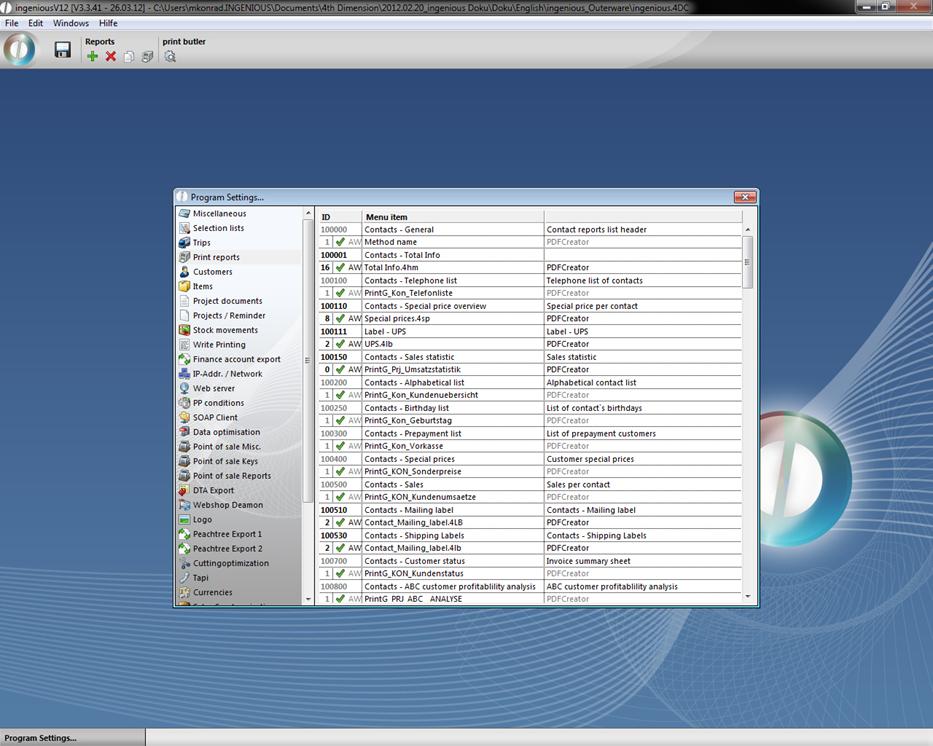
You can add new ones or you can change existing lists according to your needs, but this is not recommended without the necessary experience. We are presenting you with another print report as follows:
Combined report
With the help of the “Combined report” you can compile different print reports. You have the possibility to print diverse production documents (labels, documents, etc.) at the same time, or print one document simultaneously on more than one printer. Create a new print report by clicking on the  icon. The window “Modify report attributes” opens where you can carry out the desired settings. The following example will illustrate the collective print report for the “Contacts” module that prints sales volumes and sales prices simultaneously.
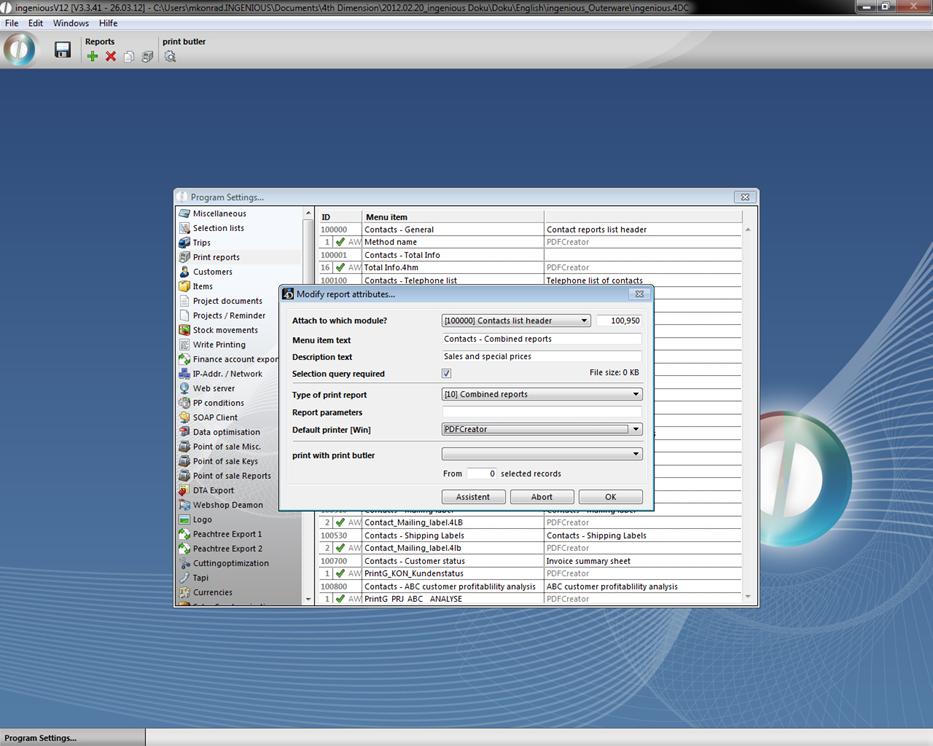
For the print report option, you select “[10] Collective print report”. The field “Report parameter” remains blank. In the field “Default printer” you can determine on which printer the reports will be printed. If the reports have their own print specifications, they will be printed on the printer model specified for the report. When all specifications are made, click on the “Assistant” button. A new window opens, where you can Drag & Drop the desired reports to the right field of the window and confirm your selection by clicking “OK”.
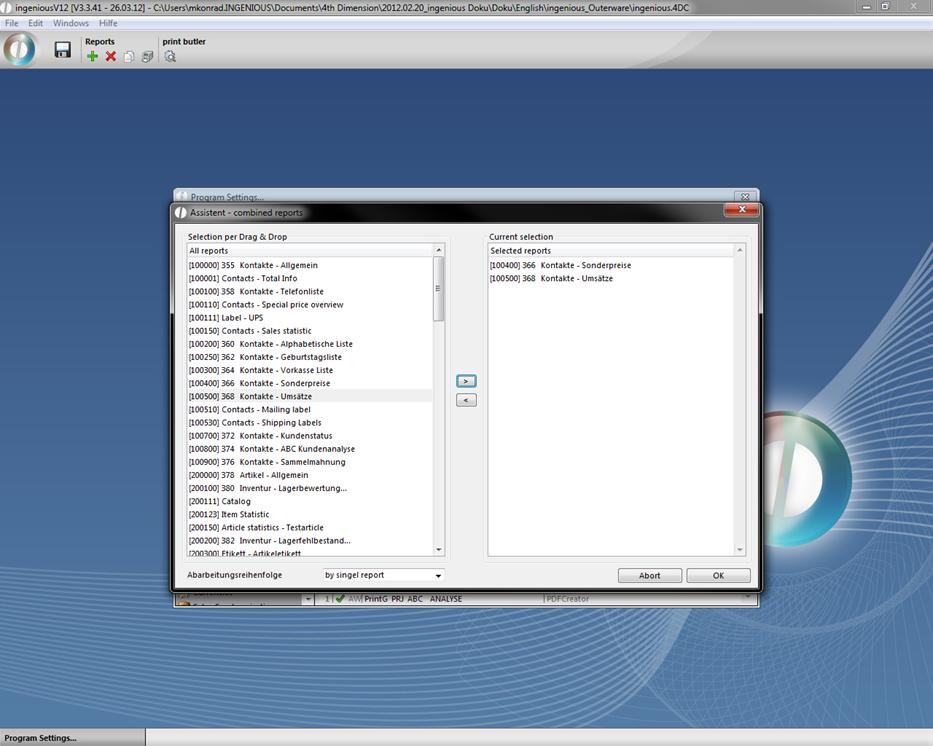
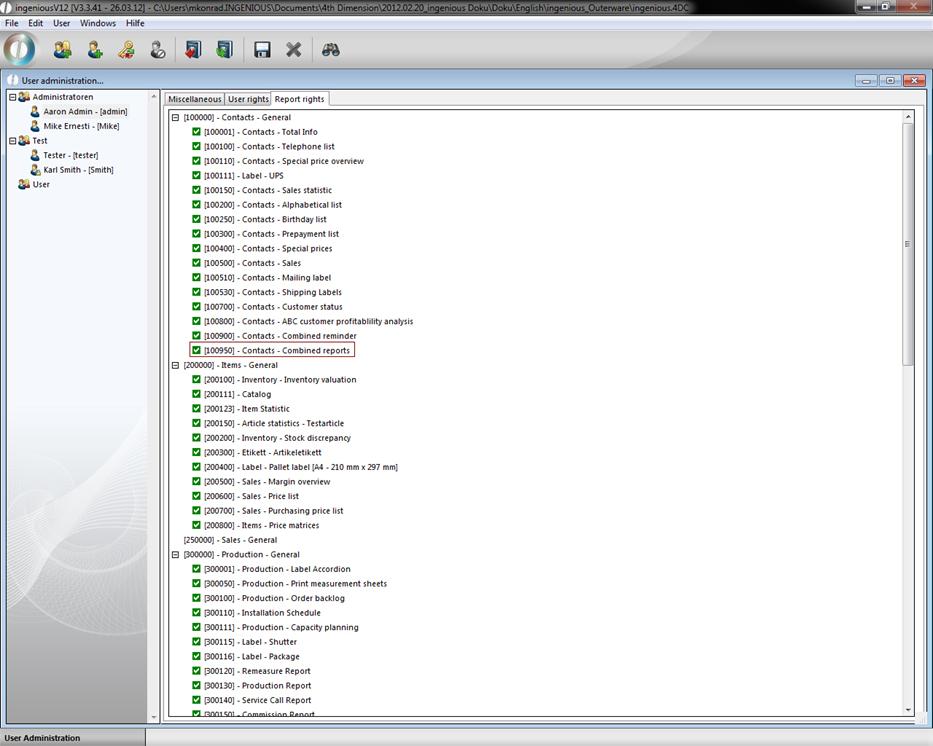
Close the report window also by clicking “OK”. You are now looking at the newly created report. Exit the program settings and save the settings. In order to be able to use the printed report, the appropriate report rights must be cleared with the user administration.
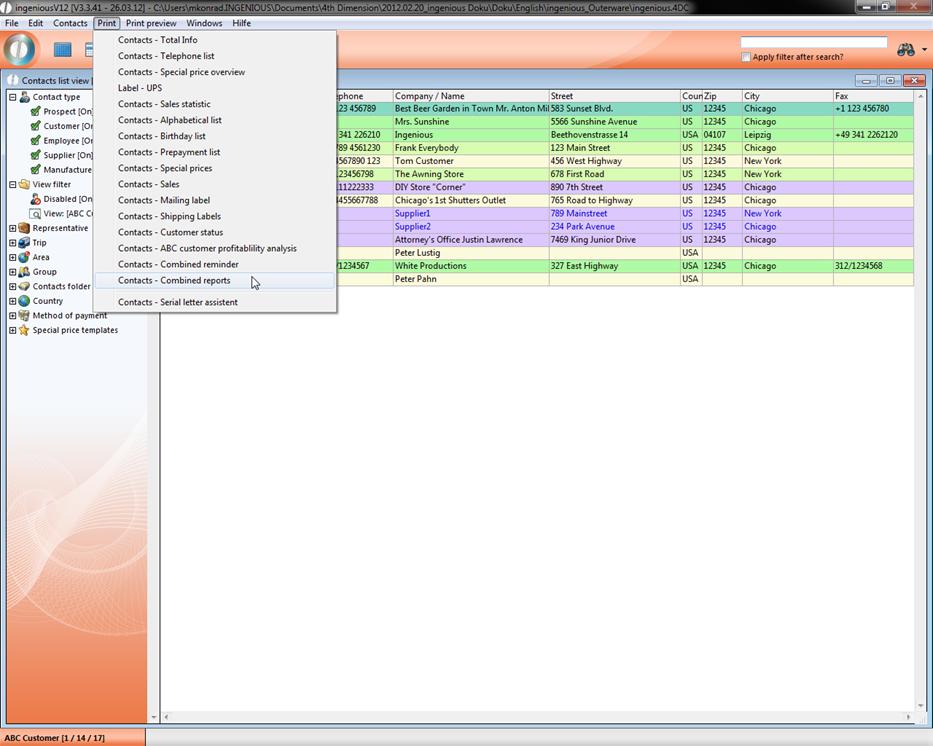
In the “Contacts” module, you will find the report created by you in the “Print” menu.
If you need additional printing lists, or if you want to change some lists, please contact Ingenious GmbH. We certainly can help you.